Cheers! I have now successfully set up SFML 2.0 (for C++) to compile for OS X, Linux and Windows! This confirms my main framework for programming. Initially, though, I was as confused as a pOtaToR.

Let me explain what I went through, and let me see if I can help you too, in case you are also having problems setting SFML 2.0 up in a cross-platform environment!
So, I have two laptops for this purpose. One is a Mac and, naturally, what I use to compile for OS X. I am using Xcode 4.6.2, to which I updated just two days ago or so. The other laptop is running, now good and old, Ubuntu 10.10 Maverick Meerkat. This is where dual cross-compiling magic happens; I natively compile the Linux executable here, of course, using G++, but also the Windows version, using MinGW. My Linux IDE is Code::Blocks. I will be working on the Mac, only moving on to this laptop when I need to compile for the other two systems. The Windows version also runs fine in Wine.
I did have some trouble here and there when it came to setting it up for the various systems, and I thought I’d briefly mention them in case anybody else wishes to work with a multi-platform SFML 2.0 setup and is running into problems similar to those that I have had.
OS X
For OS X, I first downloaded the SFML 2.0 OS X release candidate and tried setting up the frameworks and the Xcode templates. This all seemed unsuccessful, initially. I never got the templates properly working in the end either, but I didn’t need them. I set up an empty project instead, and started setting it up.
I never needed to manually set, in the project’s build phases, any frameworks to link with, because I decided to do it with linker flags* instead, but if linking errors crop up, I would suggesting manually dragging the SFML frameworks here. The build phase settings are found by clicking the project name at the top of the Xcode window’s left file hierarchy bar (shown by pressing cmd+1 if it is not visible), and then the target with the same name. At the top of the main box will be a few tabs, and one of them is for the build phases.

Ignore the AngelScript target – it has nothing to do with SFML. I just happened to be testing AS in the same project.
What I did have to do, however, were two things, located in the build settings. Those of the project, above the targets in the white middle column visible in the above picture, rather than those of any specific target. If your only target is the application itself, though, and you don’t have a second one like my AS one here, it doesn’t matter, though.
- *This asterisk refers back to those aforementioned linker flags. Instead of adding the frameworks to the project’s build settings, I added the following line to the other linker flags:
-framework sfml-system -framework sfml-window -framework sfml-graphics
If audio or networking or anything is needed, add those as well. The other linker flags are found as such:
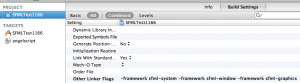
Setting linker flags in Xcode
I also had to manually set the path to the global frameworks’ folder, under the framework search paths, for some reason, which Google helped me find out. I set it to /Library/Frameworks and I did it in the application’s target, but the project’s global build settings will work just fine too.

Setting the frameworks’ search path
- Then I had to pick compilers without C++11 support because the RC of SFML has been compiled without such support and is incompatible with a program compiled with it, which would give errors.

Setting non-C++11 compiler
That was it, and I had it working under OS X!
Linux
For Linux, I tried doing things in various ways until I eventually ended up compiling SFML myself using Make, following this wonderful tutorial for Ubuntu written by a certain Xandier314 in 2011. This means that I did not download the release candidate for Linux, but the latest development snapshot found at the very top of the download page.
As the article itself says, the tutorial focuses on Ubuntu specifically, but should be applicable to most Linux distributions with the exception of package management which might work differently in order to acquire the prerequisities needed to compile SFML. Surely any programming Linux user would already know how to do this on their specific system. If not, Google is your very best friend.
Having followed this didn’t end my problems right away, though. Compiling or linking still didn’t work properly even after installing everything. The solution, however, was simple, even though it did require a little searching on my part.
- You probably need to run the following command in your terminal after having installed the libraries:
sudo ldconfig
This did the trick for me.
- If it still does not work, you may have to set your LD (fitting name!) library path, also done through the terminal:
export "LD_LIBRARY_PATH=/path/to/folder/"
The folder path is to where the libraries were installed. This was probably in /usr/local/lib. To confirm that you have successfully changed the path, you can type the following command into the terminal:
echo $LD_LIBRARY_PATH
If Code::Blocks still refuses to find your libraries or headers, you might have to set things up within the IDE as well.
- You may need to right-click your project root in the file hierarchy in the program’s left column and open up the build options. Make sure to select the project root in the left column of the window that pops up, and tab to search directories. You might have to add a path for the compiler and for the linker, respectively. The compiler requires the path to the folder within which the SFML folder containing the library’s headers lies, and the linker wants the folder of the library files. In my case, these paths are /usr/local/include for the compiler and /usr/local/lib for the linker.

Setting search directories in Code::Blocks
- I then jumped down to the debug target specifically, and chose the tab for the linker settings, so that the debug and release targets could be assigned different versions of the libraries. I clicked the add button and browsed to find my shared object files in the folder that I had assigned as the linker search directory, and chose to add the three libraries corresponding to the frameworks that I had added in OS X. I made sure to give the debug target the ones with the -d suffixes. Then I went on to the release target and did the same thing, adding the .so files with the same names, but without the -d suffix.

Adding libraries to link in Code::Blocks
That was it! I was now able to compile and run my application both in debug and release mode for Linux.
Windows
This title is, of course, slightly deceiving; I did not actually use Windows to compile the Windows version, and I’m sure it would pretty easy to set up there by following the instructions on the website either way – or perhaps not, seeing how the tutorials for OS X and Linux proved to result in problems to which I had to find solutions elsewhere. Either way, I do not possess any computer running Windows, and this section is about getting SFML 2.0 up and running for cross-compilation using Code::Blocks in Linux. The very same Ubuntu previously used, specifically.
Getting this to work assumes that you have already got the MinGW Windows cross-compiler for Linux up and running. I will not go through the steps of installing it. You can find the downloads and information needed here. I will tell you, however, that in order to set up the search paths to set the MinGW compiler for use by Code::Blocks later, you will need to go from the program’s top menu Settings > Compiler and debugger and then move on to the tab Search directories and add the path to the bin subfolder of your MinGW folder.

Setting compiler search directories in Code::Blocks
Getting it to work in Windows after having gotten it to work in Linux was surprisingly quick and without pain, actually. I made a copy of my Linux project and started making a couple of changes to it.
- First of all, though, I obviously had to acquire the Windows version of the SDK. In this case too, just like for Mac, I simply got the release candidate of SFML 2.0. Specifically, the one with Code::Blocks written in parentheses after the name.
- Having downloaded this, I opened up the project’s build options again. I began by making sure to go into the root and not a specific target, and went into the search directories once again. I removed the paths that I had assigned to the Linux project before, and replaced them by clicking the add button and simply browsing to the include and lib subfolders of the downloaded RC folder, for the compiler and linker search directories, respectively. You could install them in a more standard location if you wish.

Setting search directories for MinGW in Code::Blocks
- Then move on to the two specific targets’ linker settings like before, and clear the lists using the designated button. Time to fill them up with Windows libraries instead. Look them up in the /lib/ subfolder of your downloaded SFML 2.0 RC for Windows. We want the .a files this time. There are -d suffixed files for Windows too, though the debug target doesn’t properly compile for me, but that’s OK – I’ll just compile a final release copy for Windows in the end either way [EDIT: the problem was that I, for some reason, had picked static libraries (suffixed -s) for debug but not release – switching to dynamic (no suffix; -d means debug, not dynamic) solved this issue – however, I do have memories of cross-compiled, dynamically linked Windows applications not running for a lot of native Windows users back when I used SFML 1.6, so you might want to confirm the functionality of your application – I shall personally go and ask some people who had problems running those applications to see whether they can run dynamically linked 2.0 applications]. The release target obviously uses the unsuffixed files. Now, remember that for Windows, SFML requires one more library to be linked to, in addition to whatever other ones you use. This one is called libsfml-main.

Setting libraries to link to for MinGW in Code::Blocks
[EDIT: So you’re not supposed to use the -s suffixed libraries as shown in the image above; libsfml-system(-d).a, not libsfml-system-s(-d).a]
- For a final Code::Blocks setting, you now need to go back into Settings > Compiler and visit the tab one step after the one we previously visited. This one is called Toolchain executables. Here you will need to replace the first four or five program files by assigning a prefix to them to denote the file names of the MinGW executables located in the MinGW /bin/ subfolder that you wish to use. I choose to use the i586-mingw32 one, and so I prefix this, followed by a hyphen, to the already existing filenames, namely gcc, g++, g++ again, and ar and possibly also gdb. Assuming your regular Linux compiler is GCC, of course. Remember that you will need to remove these prefixes again when you want to compile for Linux. If anybody knows how to set this up on a target basis rather than a global one, I would be greatly thankful to learn how to do this.

Changing Code::Blocks toolchain executables
- Finally, in order to be able to properly run your application, you need to copy some DLL files from the /bin/ subfolder of your SFML 2.0 RC folder for Windows into the same folder as your Code::Blocks project. In addition to the ones corresponding to the names of the sublibraries of SFML to which you have linked, you need openal32.dll in case you’re using sfml-graphics, and in case you’re using sfml-audio, also libsndfile-1.dll.
You should now be ready to compile and see the project properly running for Windows as well, through Wine! Remember that for me, only the release target willwould (before I solved it; see above) work, so in case you get any errors when trying to compile or link the debug target, make sure to try out the release target before you deem your endeavours a failure. Also remember that you will need to clean the project first if you did like me and copied the Linux project and compiled that one earlier, as there will be incompatible leftover object files from there.
I hope this was helpful to somebody! If not, I’ll at least have these notes for myself in the future!

Tags: potator, tutorial sfml 2.0 mac osx os x linux windows ubuntu mingw g++ gcc cross-compile help


